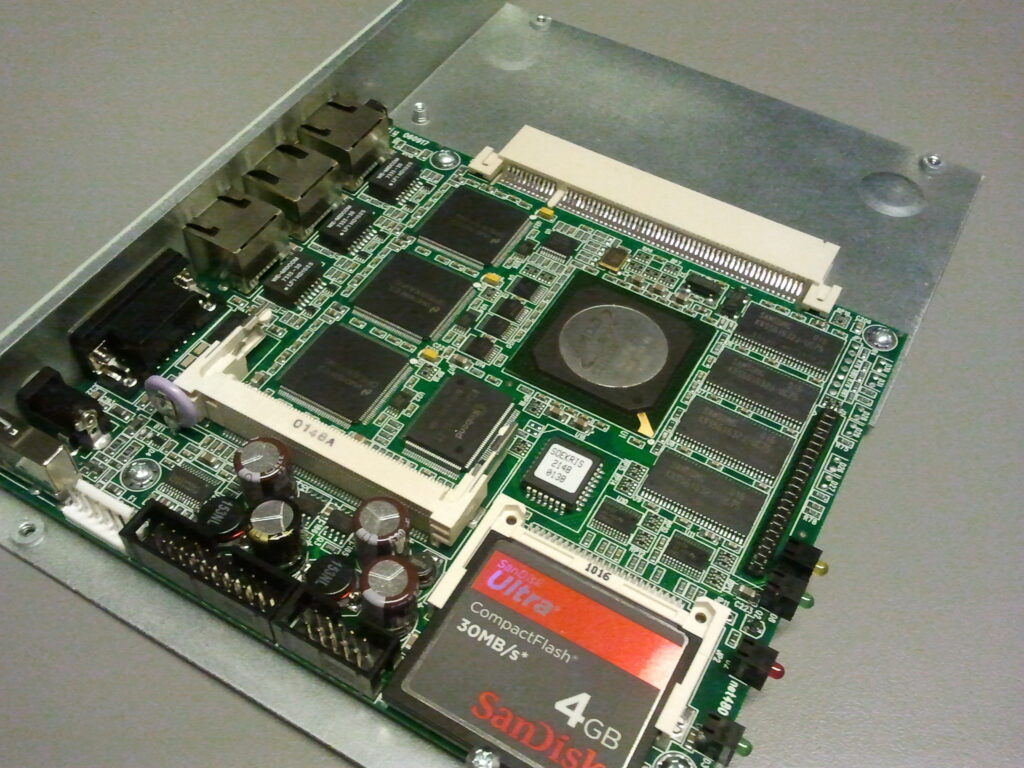
Over the past six or seven years, I’ve managed to build-up quite a repertoire of Apple hardware products. As OS/X progresses, unfortunately, some of my older hardware just isn’t able to perform with the latest OS in a way that makes the machine useful. This, most recently, was an issue with one of my Mac Minis which happens to be a 2.1, 32bit model from 2007. I’ve been using this machine as one of my home automation servers and have been running Snow Leopard on it for a while. I decided that I wanted to give the machine new life by scrapping OS/X and installing Linux Mint.

If you’re reading this post then you, most likely, have already discovered that the process isn’t as simple as it sounds. For those that don’t know, Apple Macs use what is known as Extensible Firmware Interface (EFI) to handle the boot process rather than the older Basic Input Output System (BIOS) mechanism that has been around for so long and has been a staple on PCs until recently. The details of these two systems is beyond the scope of this article but suffice it to say that, unfortunately, most Linux distributions are not able to leverage the alternative architecture that controls/manages the boot process on these Mac machines.

The good news for us in our quest to install an alternative operating system on our Mac is that Apple has included a mechanism on its machines that allows it to present an emulated BIOS and a Master Boot Record (MBR) that Linux will need to install and boot. These are some of the features that are provided via Apple’s “Bootcamp” multi-boot system.

What We’ll Need

Really all we need is a copy of the Linux ISO for whatever distro we plan to install.

Many of the guides that cover this subject talk about using Unetbootin to install the Linux ISO to a USB stick. The idea is to then boot off of the USB stick and then perform the Linux installation. This has worked for me on 64bit Mac Minis but it did not work on my 32bit Mini 2.1. There are articles that claim to be able to force these machines to boot via USB but it’s just as easy to burn our ISO to DVD and boot/install from that.

Many of these same guides also talk of using rEFIt or rEFInd, but neither are needed to accomplish our goal of installing and booting Linux on a Mac Mini.

The Process

Note: Following these steps will not set up a dual boot instance of Linux on your Mac. These steps will completely remove OS/X from your computer.

Boot up your Mac Mini target into OS/X and then follow along:

Step 1: Download the 32bit version of the Linux Mint Mate ISO and burn it to a DVD.

Step 2: Pop the Linux DVD image into the Mini and reboot your Mac and hold down the option key (alt key on Windows Keyboards) being sure to select the Optical boot option from the list of available options. Don’t be surprised if it says Windows.

Step 3: Run the Linux Mint installer from the desktop, during the install, select use all space during the partition setup step.

Tweaks

For me, this process worked just fine. When I would reboot the machine, I would be presented with the normal Apple white / gray screen, I would hit enter a few times and Linux Mint would boot right up. I did notice that I had to press enter to force the boot. If I didn’t the computer would appear to lock-up.

After a bit more research, I discovered that I needed to tell the Mac to boot in BIOS mode rather than attempting a normal EFI boot. The easiest way to accomplish this is to insert a copy of your OS/X media into the Mini’s optical drive and reboot. In my case, it boots right up off of the optical drive but you may have to hold the option key down and select your optical drive as your boot option. Once the install screen comes up, select Terminal from the utilities menu and run the following command to determine which partition is your boot partition.

diskutil list

My boot partition was disk0s1. Once I knew this, I was able to issue the following command:

bless --device /dev/disk0s1 --setBoot --legacy --verbose

Much better! Now turning the computer on resulted in an instantaneous boot into Linux. Now I noticed that a warm boot would result in the computer just hanging on the white / gray screen just as before but a cold boot would work every time. The key to fixing this issue is to modify the reboot kernel parameter from its default of kbd to cold. To do this, I needed to modify the the GRUB_CMDLINE_LINUX_DEFAULT line in /etc/default/grub to include reboot=cold. In my case this modified line now reads GRUB_CMDLINE_LINUX_DEFAULT=“quiet splash reboot=cold”.

After making these changes, My Mac Mini would boot Linux Mint perfectly every time and is much much faster than it was when it was running OS/X!

A Couple of Gotchas

(1) When trying to go back and configure my Mac to “legacy” boot, I did notice that trying to boot off of my Mountain Lion DVD would not work. I didn’t try troubleshooting the issue but instead tried booting off of my Snow Leopard DVD which worked just fine.

(2) When I did my initial install, I did use the rEFIt Boot Loader. In an attempt to fix the lock-up I was experiencing, I issued the following command from a Linux terminal to change my partition table from GUID Partition Table (GPT) to the more common Master Boot Record (MBR).

mklabel msdos

This blew away the rEFIt Boot Loader and put me back to the default Apple bootloader. After reinstalling Linux Mint, I found that this change didn’t resolve or otherwise help the “hang-up” issue and therefore was a totally unnecessary step. This did show me, however, that using an alternative bootloader was unnecessary as the Apple bootloader works just fine.

Until next time – GEEK OUT!

~GT~


Most of my computer time is spent on my Mac inside the gorgeous OS/X GUI using the tools that are necessary for me to run my business.  Many of my side projects, however, take me back to my beloved Bash Shell which I can use on my Mac, where it gets plenty of use, but is especially used on my many Linux servers, all of which are run without a fancy GUI (Gnome, KDE, X, etc).

If you’re not familiar with Bash, it is a Unix shell that is part of the GNU Project and is a replacement for the Bourne shell.  Bash has been distributed widely as the default shell for numerous Linux distributions, various BSD distributions and Mac OS/X.  Simply put, “Bash is a command processor that’s typically run in a text window, allowing the user to type commands which cause actions. Bash can also read commands from a file, called a script. Like all Unix shells, it supports filename wildcarding, piping, here documents, command substitution, variables and control structures for condition-testing and iteration.”1 Bash is a POSIX shell with a number of extensions. The foundation of bash such as its keywords, syntax and other basic features were copied from Bourne Shell. Other features, e.g., history, were copied from C Shell and Korn Shell.

As I manage my Linux servers the tool that gets the most use, by far, is the text-editor vi. Many of today’s younger Linux geeks run full GUIs on their boxes.  If they work at the command line at all, they often use “simpler” editors such as Pico or nano but for me, I prefer vi – thank you very much!!

Anyone with even a casual understanding of the *nix world knows that there are many-a-topics that can start a nasty flame-war.  One such topic is vi -vs- Emacs and if you’re a Hacker on any level then you’re obliged to pick a side and hold your ground (I’m only kidding … let’s all be happy ;)

Want to be a respectable “hacker“? Learn to use vi or Emacs and you’ll have my respect!

Following are few of the basic vi commands I use on a regular basis:

Starting vi

vi filename edit filename starting at line 1
vi -r filename recover filename that was being edited when system crashed


Exiting vi

:x<Return> quit vi, writing out modified file to file named in original invocation
:wq<Return> quit vi, writing out modified file to file named in original invocation
:q<Return> quit (or exit) vi
:q!<Return> quit vi even though latest changes have not been saved for this vi call


Moving Around

1G<Return> move cursor to first line in file
nG<Return> move cursor to line n
G<Return> move cursor to last line in file


Paging

^f move forward one screen
^b move backward one screen


Adding & Changing Text

i insert text before cursor, until <Esc> hit
I insert text at beginning of current line, until hit
a append text after cursor, until <Esc> hit
A append text to end of current line, until hit
o open and put text in a new line below current line, until hit
O open and put text in a new line above current line, until hit


Deleting Text

x delete single character under cursor
Nx delete N characters, starting with character under cursor
dw delete the single word beginning with character under cursor
dNw delete N words beginning with character under cursor;
D delete the remainder of the line, starting with current cursor position
dd delete entire current line
Ndd delete N lines, beginning with the current line;


Copy & Paste

yy copy (yank, cut) the current line into the buffer
Nyy copy (yank, cut) the next N lines, including the current line, into the buffer
p put (paste) the line(s) in the buffer into the text after the current line


Finding Text

/string search forward for occurrence of string in text
?string search backward for occurrence of string in text
n move to next occurrence of search string
N move to next occurrence of search string in opposite direction


Until next time – GEEK OUT!

~GT~


We are finally ready to complete this series and leave you with a fully functional and cost free backup solution.

Now that you have your server setup and have an initial copy of the data you want to backup on the box, we’re ready to go back to our source machine and setup our backups.  As you saw in the last post, we’re using rsync to conduct the backups. The beauty of rsync is that it only moves changed blocks of data.  Let’s say you have a 3GB mail store such as an Outlook PST.  Each day you use your mail, the file will change.  Rather than copying the complete file each time, rsync will only copy the blocks that have changed.  Not only does this save a ton on time, but it will save a ton of bandwidth and frustration. Here’s how we set it up:

cd ~
vi backup.sh

Add the following line then save and exit:

rsync -rtvh --size-only --delete /source/volume/ xxx.xxx.xxx.xxx:/target/volume/backup/

Now let’s setup our cron job

sudo crontab -e

Now add the following:

10 */12 * * * /script/location/backup.sh

Conclusion

That’s it! You now have your own off-site backup server for which you have complete control and pay no monthly subscriptions.

Geek out and ENJOY!

~GT~

© 2012 Geek-Tips Suffusion theme by Sayontan Sinha